Local Backup Creator — Instructions and Documentation
This website contains the instructions to the Local Backup Creator program for Windows.
Overview
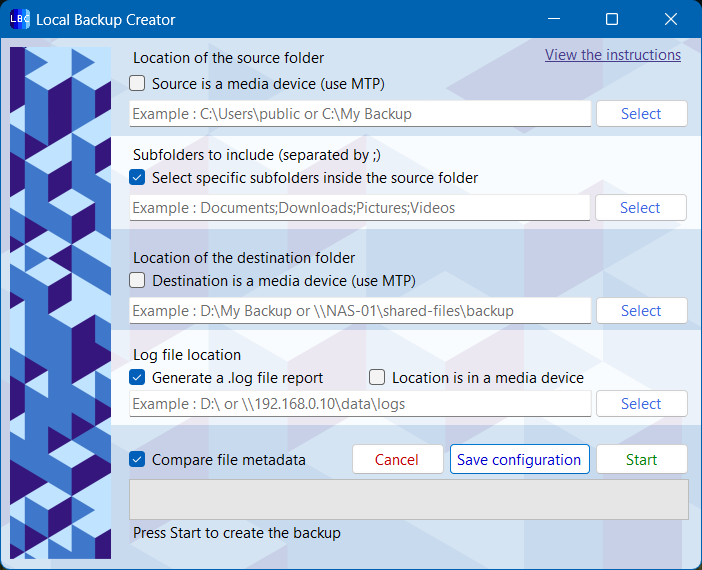
Local Backup Creator is a lightweight Windows application that synchronizes files and folders between a source and a destination path.
It is designed for quick, configurable backups and supports both local storage and portable devices (via MTP).
This program is public domain — you can use, modify, or redistribute it freely.
(Though, I wouldn’t recommend selling it. There are a few… bugs… to say the least!)
To download this program, go to github.com/sbloubisbou and download the Release v1.0.1 Win_x64 folder. The portable .exe file is contained inside with its dependencies and doesn’t require any authorizations or installation, simply click & run but read the documentation first!
More info :
Here is the (un)license — which is Public Domain.
And here is the settings file (settings.cfg) mentionned below. It contains every parameters of the program that you can modify to your liking! More info on what the individual parameters do below.
Requirements
Operating System
-
Windows 7 Service Pack 1 or later
-
Not compatible with Windows XP or Vista (I tried).
-
Tested on Windows 7 SP1, 8 and 8.1, 10, and 11.
For Linux distros
The program uses .NET WinForms, which is not supported on anything other than Windows.
However, if you can install .NET 10.X Runtime and use a WinForms app emulator like Wine on your distribution, it will work since your device’s paths are fully managed by the dotnet runtime and the portable device’s paths are managed be the MediaDevice’s dotnet library.
Runtime Dependencies
-
.NET Desktop Runtime 10.X
-
It is required to launch the application.
-
Download the .NET Desktop Runtime 10.X, not the .NET Runtime 10.X
-
You can download it from dotnet.microsoft.com.
Supported Devices
-
Fully compatible with:
-
Local drives (HDDs, SSDs, USB sticks)
-
Network drives (UNC paths like
\\NAS-01\SharedFilesor mapped drivesF:\\Backups) -
Portable devices via MTP (Android, iPhones, cameras, audio players for some reason)
iPhones support:
- Only PTP (Picture Transfer Protocol) is supported.
- Files can be read but not written to the device.
- You can use your iPhone as a source, but not as a destination or log folder.
Features
Folder Synchronization
Local Backup Creator compares every file and folder in the source and destination directories.
It updates the destination to mirror the source by:
-
Adding missing files/folders
-
Replacing outdated files
-
Removing items no longer present in the source
With an SSD, it can analyze hundreds of gigabytes in just a few seconds!
File Metadata Comparison

For better accuracy, the program compares file metadata — specifically:
-
File size
-
Last modified date
This ensures even files with the same name but different content are updated.
Note: Metadata comparison is enabled by default.
You can disable it if backups take too long and you rarely modify personal files (e.g., text documents or PDFs).
Selecting Subfolders

You can choose to back up specific subfolders within your main source directory.
For this source path:
C:\Users\you
You can select theses subfolders
-
C:\Users\you\Documents -
C:\Users\you\Pictures -
C:\Users\you\Downloads
Just write Documents;Pictures:Downloads at the subfolders to include section.
Backup to a Phone (MTP)

The program can use your phone or camera storage as a source, log, destination and all three at the same time!
Before starting,
Be sure to unlock your phone and allow your PC to access its files when prompted. You can check if your device is connected by opening file explorer.
-
Enable the “Source / Log / Destination is a phone” checkbox at the corresponding zone. You can select the same device as the source and destination.
-
You will be prompted to select the root path of your device that you want to use. Choose the corresponding path and you shouldn’t write it manually since the root path vary between devices.
You usually have two choices:
- Your internal storage
(typically named Internal Shared Storage)
- Your SD card’s storage if inserted
(simply named Card)
- Finally, write the rest of the path to match your folder’s path on the textbox.
The final result could look like this:
Pixel 10 Pro;\Internal Shared Storage\DCIM\Camera
Apple iPhone;\Internal Storage\202601
General informations about MTP
- Using the MTP protocol is slow. The speed varies around 30 MB/seconds for medium to big files and is much slower for many small files (eg. 100 KB or less). If you have files bigger than 4 GB, it is recommended to copy it manually and place the copy at the correct destination after the backup is executed.
There is two ways to speed up the process :
- Be sure to use an USB 3 or 4 cable instead of an USB 2.0 cable if your device supports it.
The transfer speed went from 30 MB/s to ≈ 90 MB/s on an USB 3.2 cable instead of an USB 2.0 one on a recent Pixel smartphone.
- Manually transfer folders using ADB (Android Debug Bridge) for any Android device. You can dowload it from this source : developer.android.com
Here is an useful Reddit post showing an example on how to achieve this : www.reddit.com
-
when using an MTP device as the source, this program will not be able to display the progression of the backup. To know if the backup is not frozen, check if there is any activity on the destination drive in Task Manager. If the destination drive isn’t visible, navigate to the currently analysed location using File Explorer. A message noticing that the drive is currently in use should appear. If not, the backup may have frozen and it is safe to close the program.
-
Sadly, the program has way more chances to crash when using an MTP device than a regular one. If it does, disconnect and reconnect your MTP device after the backup process since it may get disconnected by the program’s failure. Furthermore, if there was a file currently being uploaded or downloaded during the crash, it will be half missing! The program will not retry to download or upload it since the MTP protocol does not support metadata comparison. Bulky files should be transferred separately.
Logging

After every backup, a detailed log file can optionnaly be generated.
It includes:
-
Files and folders that were impossible to backup
-
Errors encountered
-
Temporary/system files that were ignored
Recommendation:
Please review the log file after a backup — it lists all errors and skipped items.
Some items may include important files like folders and files marked as system or temporary, some album artwork and files currently open by another program. They will need to be copied manually.
You may want to check the Automatisation section to make the program copy system or temporary files.
Multi-Threading
Local Backup Creator uses multiple threads to accelerate file analysis and copying.
-
By default, it uses 1 thread per CPU core.
-
When backing up to an MTP device, it automatically limits to 1 thread because you cannot multithread on a MTP connection.
Recommendation:
- SSD: Leave threads at 0 (auto) for the best performance.
- HDD: Having too much threads trying to read and write to the disk trashes the speed so set to 1 or 2 threads in
settings.cfg:
```text
maxThreads=1
```
- You should keep the number of threads between 1 and 40 for the best performance if you want to set it manually.
- The number of threads will fluctuate between the maximum authorised and slowly go down to 0 as the biggest files are being copied in last.
Automatisation
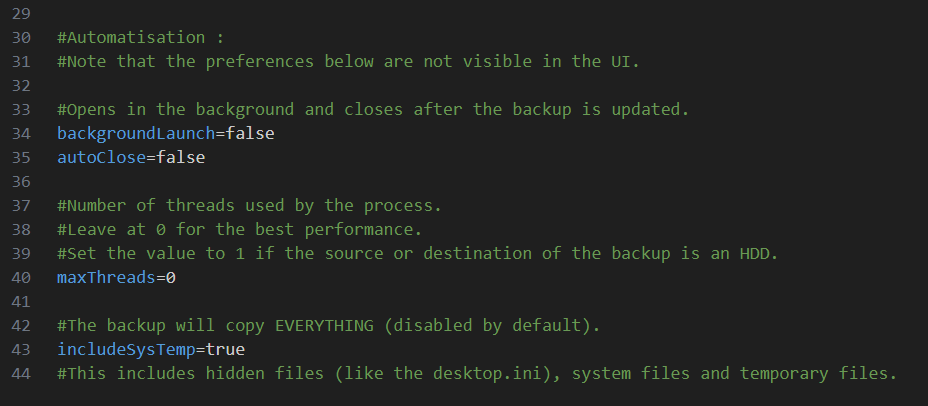
You can make the program run automatically in the background:
-
Open
settings.cfg(in theResourcesdirectory). -
Set:
backgroundLaunch=true
- (Optional) Schedule the app with Windows Task Scheduler integrated to Windows to run at certains events like:
-
At system startup
-
On specific days (e.g., every weekend)
Other useful keys:
autoClose=true
This makes the program automatically close after the backup completion.
includeSysTemp=true
This makes the program copy the system/temporary files and folders. It is useful for copying different kinds of data such as album artworks.
Note that enabling this may cause for a lot of errors to appear while the backup is in progress if you do not give administratives priviledges to the program!
Troubleshooting
If the Backup Appears Stuck at 99%
This usually means one thread is still copying a very large file while the others have finished. You should wait for a bit for the thread to finish, but if it doesn’t :
-
Open Task Manager (
Ctrl + Shift + Esc). -
Check the disk activity of your destination drive.
-
If the disk is active, please wait — the backup is still running.
-
If not, cancel the backup. There are no risks related to cancelling it, only the file being copied being half missing.
Next, enable metadata comparison for the next run to detect the half-missing file. The program will then retry to copy it.
Finding Where the Backup Freezes
If it consistently hangs at the same folder:
- Open this file in the program’s directory:
Resources\settings.cfg
- Set:
maxThreads=1
(This forces the program to run in single-threaded mode)
- Run the backup again and note which folder causes the hang.
You can see it at the lower left of the interface when the backup is running.
-
Manually copy the folder’s content to the destination.
-
Restore:
maxThreads=0
Permissions & Administrator Mode
The program doesn’t request administrative rights automatically since it is not required most of the time.
If you see “Access denied” errors when reading or writing files or you want to copy system and temporary files :
-
Right-click
Local Backup Creator.exe -
Select Run as Administrator
System and temporary files will not be copied only with admin rights since you have to enable them via the settings.cfg file in the Resources folder.
Usage Summary
-
Select a source folder — where your files are stored.
-
Select a destination folder — where backups will go.
-
(Optional) Select specific subfolders from the source folder.
-
(Optional) Enable Source / Destination is a phone for MTP devices.
-
(Optional) Adjust thread count and background settings in
settings.cfg. -
Click Start Backup and monitor the progress.
-
When finished, it is recommended to review the log file for skipped items.
Final Notes
You can run this program as many times as you like to keep it up to date!
This Readme was rephrased using ChatGPT 5 Free.
P.S :
To publish this program via Visual Studio’s Powershell terminal (Ctrl + ` ) for the same result as me, use this command :
dotnet publish -c Release -r win-x64 --self-contained false -p:PublishSingleFile=false -p:IncludeNativeLibrariesForSelfExtract=true -p:UseWindowsForms=true